
 Medium
bdc8ab51c6
[Feature] Added able to get data reference
Medium
bdc8ab51c6
[Feature] Added able to get data reference
|
%!s(int64=6) %!d(string=hai) anos | |
|---|---|---|
| Demo | %!s(int64=9) %!d(string=hai) anos | |
| Distrib | %!s(int64=8) %!d(string=hai) anos | |
| KeychainSwift.xcodeproj | %!s(int64=7) %!d(string=hai) anos | |
| Sources | %!s(int64=6) %!d(string=hai) anos | |
| Tests | %!s(int64=7) %!d(string=hai) anos | |
| graphics | %!s(int64=7) %!d(string=hai) anos | |
| macOS Demo | %!s(int64=8) %!d(string=hai) anos | |
| scripts | %!s(int64=10) %!d(string=hai) anos | |
| .gitignore | %!s(int64=9) %!d(string=hai) anos | |
| .swift-version | %!s(int64=7) %!d(string=hai) anos | |
| CHANGELOG.md | %!s(int64=7) %!d(string=hai) anos | |
| CONTRIBUTING.md | %!s(int64=8) %!d(string=hai) anos | |
| ISSUE_TEMPLATE.md | %!s(int64=8) %!d(string=hai) anos | |
| KeychainSwift.podspec | %!s(int64=7) %!d(string=hai) anos | |
| LICENSE | %!s(int64=7) %!d(string=hai) anos | |
| Package.swift | %!s(int64=9) %!d(string=hai) anos | |
| README.md | %!s(int64=6) %!d(string=hai) anos |
README.md
Helper functions for storing text in Keychain for iOS, macOS, tvOS and WatchOS




This is a collection of helper functions for saving text and data in the Keychain. As you probably noticed Apple's keychain API is a bit verbose. This library was designed to provide shorter syntax for accomplishing a simple task: reading/writing text values for specified keys:
let keychain = KeychainSwift()
keychain.set("hello world", forKey: "my key")
keychain.get("my key")
The Keychain library includes the following features:
- Get, set and delete string, boolean and Data Keychain items
- Specify item access security level
- Synchronize items through iCloud
- Share Keychain items with other apps
What's Keychain?
Keychain is a secure storage. You can store all kind of sensitive data in it: user passwords, credit card numbers, secret tokens etc. Once stored in Keychain this information is only available to your app, other apps can't see it. Besides that, operating system makes sure this information is kept and processed securely. For example, text stored in Keychain can not be extracted from iPhone backup or from its file system. Apple recommends storing only small amount of data in the Keychain. If you need to secure something big you can encrypt it manually, save to a file and store the key in the Keychain.
Setup
There are four ways you can add KeychainSwift to your project.
Add source (iOS 7+)
Simply add KeychainSwiftDistrib.swift file into your Xcode project.
Setup with Carthage (iOS 8+)
Alternatively, add github "evgenyneu/keychain-swift" ~> 13.0 to your Cartfile and run carthage update.
Setup with CocoaPods (iOS 8+)
If you are using CocoaPods add this text to your Podfile and run pod install.
use_frameworks!
target 'Your target name'
pod 'KeychainSwift', '~> 13.0'
Setup with Swift Package Manager
Here is an example of a Package.swift file.
import PackageDescription

let package = Package(
    name: "MyApp",
    dependencies: [
        .package(url: "https://github.com/evgenyneu/keychain-swift.git", from: "13.0.0"),
    ],
    targets: [
        on.
        .target(
            name: "MyApp",
            dependencies: ["KeychainSwift"]),
    ]
)
Legacy Swift versions
Setup a previous version of the library if you use an older version of Swift.
Usage
Add import KeychainSwift to your source code unless you used the file setup method.
String values
let keychain = KeychainSwift()
keychain.set("hello world", forKey: "my key")
keychain.get("my key")
Boolean values
let keychain = KeychainSwift()
keychain.set(true, forKey: "my key")
keychain.getBool("my key")
Data values
let keychain = KeychainSwift()
keychain.set(dataObject, forKey: "my key")
keychain.getData("my key")
Reference to value
let keychain = KeychainSwift()
keychain.set(dataObject, forKey: "my key")
keychain.getData("my key", isReference: true)

#### Removing keys from Keychain
Swift keychain.delete("my key") // Remove single key keychain.clear() // Delete everything from app's Keychain. Does not work on macOS.
## Advanced options


<h3 id="keychain_item_access">Keychain item access</h3>

Use `withAccess` parameter to specify the security level of the keychain storage.
By default the `.accessibleWhenUnlocked` option is used. It is one of the most restrictive options and provides good data protection.
KeychainSwift().set("Hello world", forKey: "key 1", withAccess: .accessibleWhenUnlocked)
You can use `.accessibleAfterFirstUnlock` if you need your app to access the keychain item while in the background. Note that it is less secure than the `.accessibleWhenUnlocked` option.

See the list of all available [access options](https://github.com/evgenyneu/keychain-swift/blob/master/Sources/KeychainSwiftAccessOptions.swift).


<h3 id="keychain_synchronization">Synchronizing keychain items with other devices</h3>

Set `synchronizable` property to `true` to enable keychain items synchronization across user's multiple devices. The synchronization will work for users who have the "Keychain" enabled in the iCloud settings on their devices.

Setting `synchronizable` property to `true` will add the item to other devices with the `set` method and obtain synchronizable items with the `get` command. Deleting a synchronizable item will remove it from all devices.

Note that you do NOT need to enable iCloud or Keychain Sharing capabilities in your app's target for this feature to work.
Swift // First device let keychain = KeychainSwift() keychain.synchronizable = true keychain.set("hello world", forKey: "my key")
// Second device let keychain = KeychainSwift() keychain.synchronizable = true keychain.get("my key") // Returns "hello world"
We could not get the Keychain synchronization work on macOS.


<h3 id="keychain_access_groups">Sharing keychain items with other apps</h3>

In order to share keychain items between apps on the same device they need to have common *Keychain Groups* registered in *Capabilities > Keychain Sharing* settings. [This tutorial](http://evgenii.com/blog/sharing-keychain-in-ios/) shows how to set it up.

Use `accessGroup` property to access shared keychain items. In the following example we specify an access group "CS671JRA62.com.myapp.KeychainGroup" that will be used to set, get and delete an item "my key".
Swift let keychain = KeychainSwift() keychain.accessGroup = "CS671JRA62.com.myapp.KeychainGroup" // Use your own access goup
keychain.set("hello world", forKey: "my key") keychain.get("my key") keychain.delete("my key") keychain.clear()
*Note*: there is no way of sharing a keychain item between the watchOS 2.0 and its paired device: https://forums.developer.apple.com/thread/5938

### Setting key prefix

One can pass a `keyPrefix` argument when initializing a `KeychainSwift` object. The string passed in `keyPrefix` argument will be used as a prefix to **all the keys** used in `set`, `get`, `getData` and `delete` methods. Adding a prefix to the keychain keys can be useful in unit tests. This prevents the tests from changing the Keychain keys that are used when the app is launched manually.

Note that `clear` method still clears everything from the Keychain regardless of the prefix used.
Swift let keychain = KeychainSwift(keyPrefix: "myTestKey_") keychain.set("hello world", forKey: "hello") // Value will be stored under "myTestKey_hello" key
### Check if operation was successful

One can verify if `set`, `delete` and `clear` methods finished successfully by checking their return values. Those methods return `true` on success and `false` on error.
Swift if keychain.set("hello world", forKey: "my key") { // Keychain item is saved successfully } else { // Report error }
To get a specific failure reason use the `lastResultCode` property containing result code for the last operation. See [Keychain Result Codes](https://developer.apple.com/documentation/security/1542001-security_framework_result_codes).
Swift keychain.set("hello world", forKey: "my key") if keychain.lastResultCode != noErr { /* Report error */ } ```
Using KeychainSwift from Objective-C
This manual describes how to use KeychainSwift in Objective-C apps.
Known serious issue
It has been reported that the library sometimes returns nil instead of the stored Keychain value. The issue seems to be random and hard to reproduce. It may be connected with the Keychain issue reported on Apple developer forums. If you experienced this problem feel free to create an issue so we can discuss it and find solutions.
Video tutorial
Thanks to Alex Nagy from rebeloper.com for creating this two-part video tutorial.

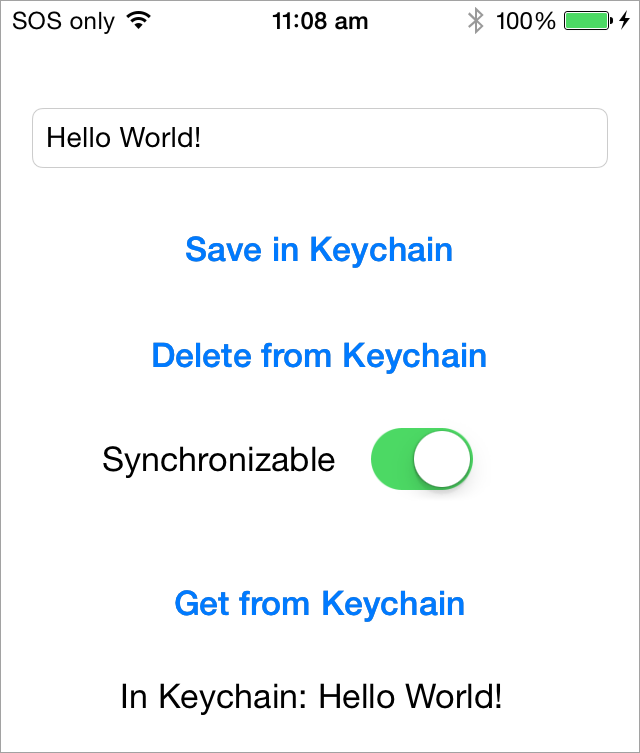
Demo app
Alternative solutions
Here are some other Keychain libraries.
- DanielTomlinson/Latch
- jrendel/SwiftKeychainWrapper
- kishikawakatsumi/KeychainAccess
- matthewpalmer/Locksmith
- s-aska/KeyClip
- yankodimitrov/SwiftKeychain
Thanks 👍
- The code is based on this example: https://gist.github.com/s-aska/e7ad24175fb7b04f78e7
- Thanks to diogoguimaraes for adding Swift Package Manager setup option.
- Thanks to glyuck for taming booleans.
- Thanks to pepibumur for adding macOS, watchOS and tvOS support.
- Thanks to ezura for iOS 7 support.
- Thanks to mikaoj for adding keychain synchronization.
- Thanks to tcirwin for adding Swift 3.0 support.
- Thanks to Tulleb for adding Xcode 8 beta 6 support.
- Thanks to CraigSiemens for adding Swift 3.1 support.
- Thanks to maxkramerbcgdv for fixing Package Manager setup in Xcode 8.2.
- Thanks to elikohen for fixing concurrency issues.
- Thanks to beny for adding Swift 4.2 support.
- Thanks to xuaninbox for fixing watchOS deployment target for Xcode 10.
Feedback is welcome
If you notice any issue, got stuck or just want to chat feel free to create an issue. We will be happy to help you.
License
Keychain Swift is released under the MIT License.